
Wagilo business app
Bookings
Before you book
Add the client and their dogs first so they’re ready to select. Once they’re saved, you can use the same details for later bookings without entering them again.
Enable the services you provide under Settings → Services and set your normal prices. Wagilo uses these and any saved individual client rates when working out charges leaving you to check the booking rather than calculate the price each time.
Add a booking
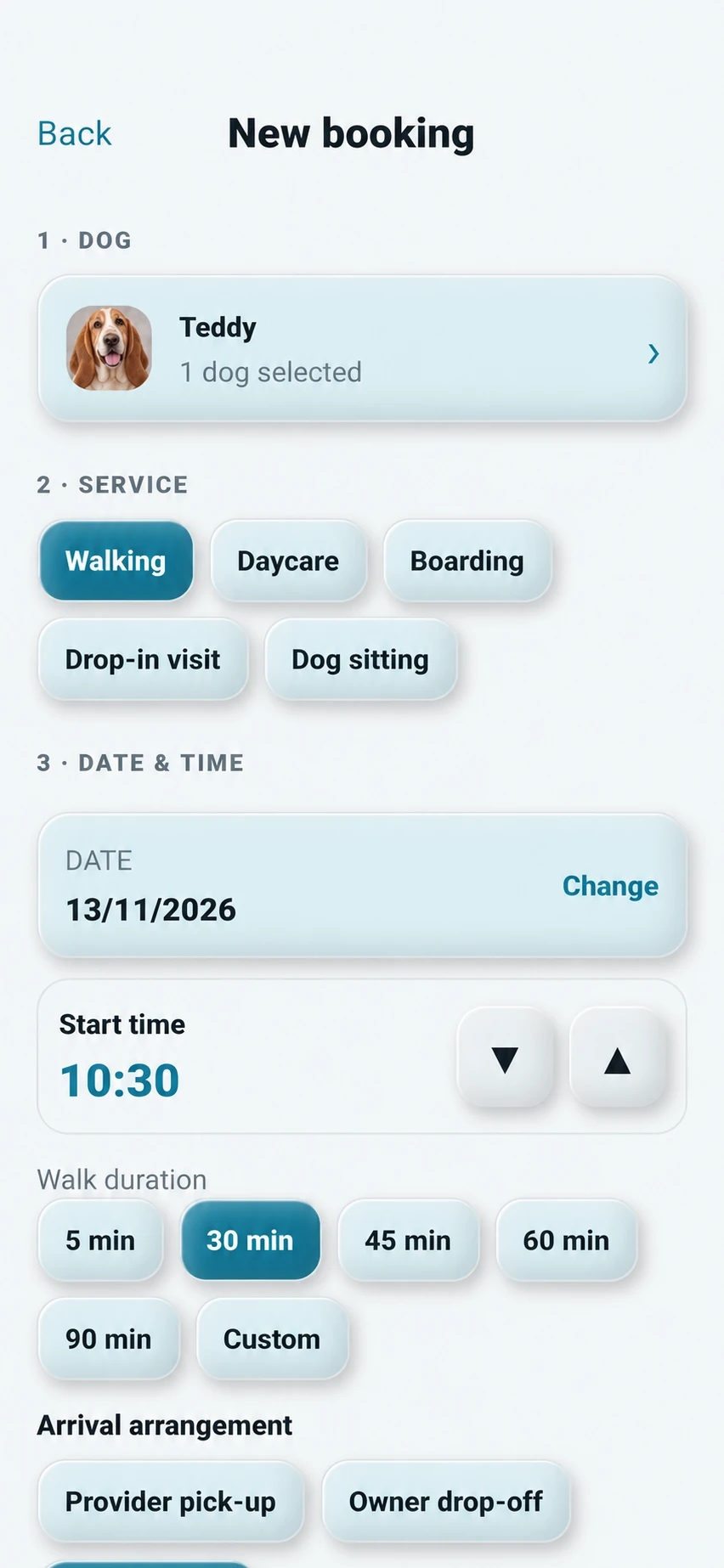
Open Bookings and tap + Add booking. Choose the dog(s) in the New booking form, then select the service.
The date and time controls then change to suit the selected service. Set a start time and duration for a walk, drop-in or sitting visit. For daycare, check arrival and collection; for boarding, set both dates and times. This keeps the booking tied to the actual period you’ll be providing care.
If other dogs from the household are offered, check which ones are selected. Choose the relevant arrival arrangement where it is shown. A companion suggestion is there to save you finding the other dog, not to assume it is coming too.
For regular work, open Repeat or add notes and choose Weekly, Weekdays or Every 2 weeks, then the number of bookings. A regular weekly walk can be entered together instead of being added date by date. Add a note if there’s something particular to remember.
Check the details, warnings and any estimated service price before tapping Confirm booking. If the price looks wrong, review the business and client rates. For the current one-booking price option on supported services, see Price for one booking.
View and change bookings
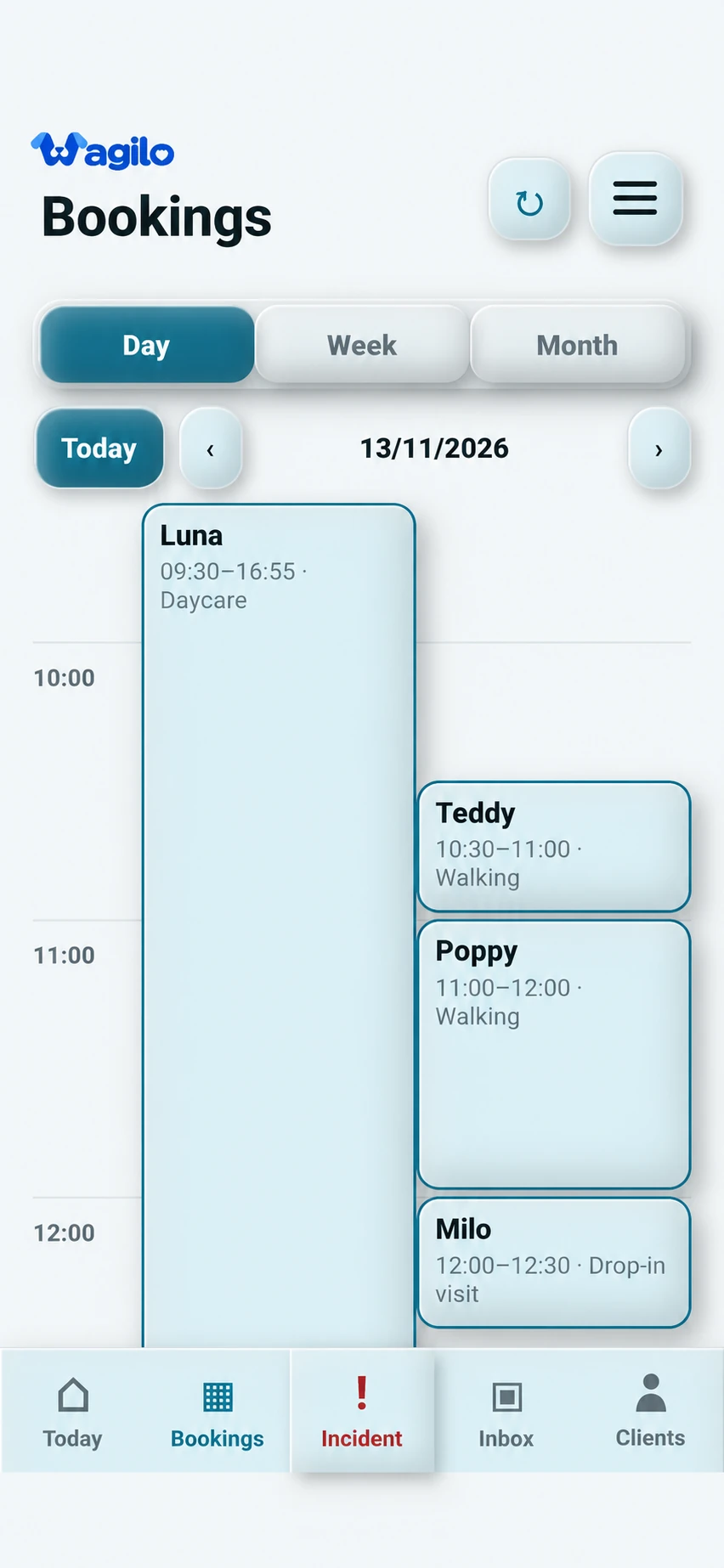
The saved booking appears in Bookings. Use Day to check individual visits, Week when planning the next few days or Month for a wider view. If you wish to change the details of a particular booking, locate the booking in the Day view of the Bookings page and tap it or tap a dog image in Today and use View or change booking, you can then edit the details making sure to save them at the bottom of the page.
Each booking in a repeat can be edited independently, so moving one week’s walk doesn’t require rebuilding the regular bookings. If it is no longer going ahead, use Cancel booking to move it into cancelled history.
On the day
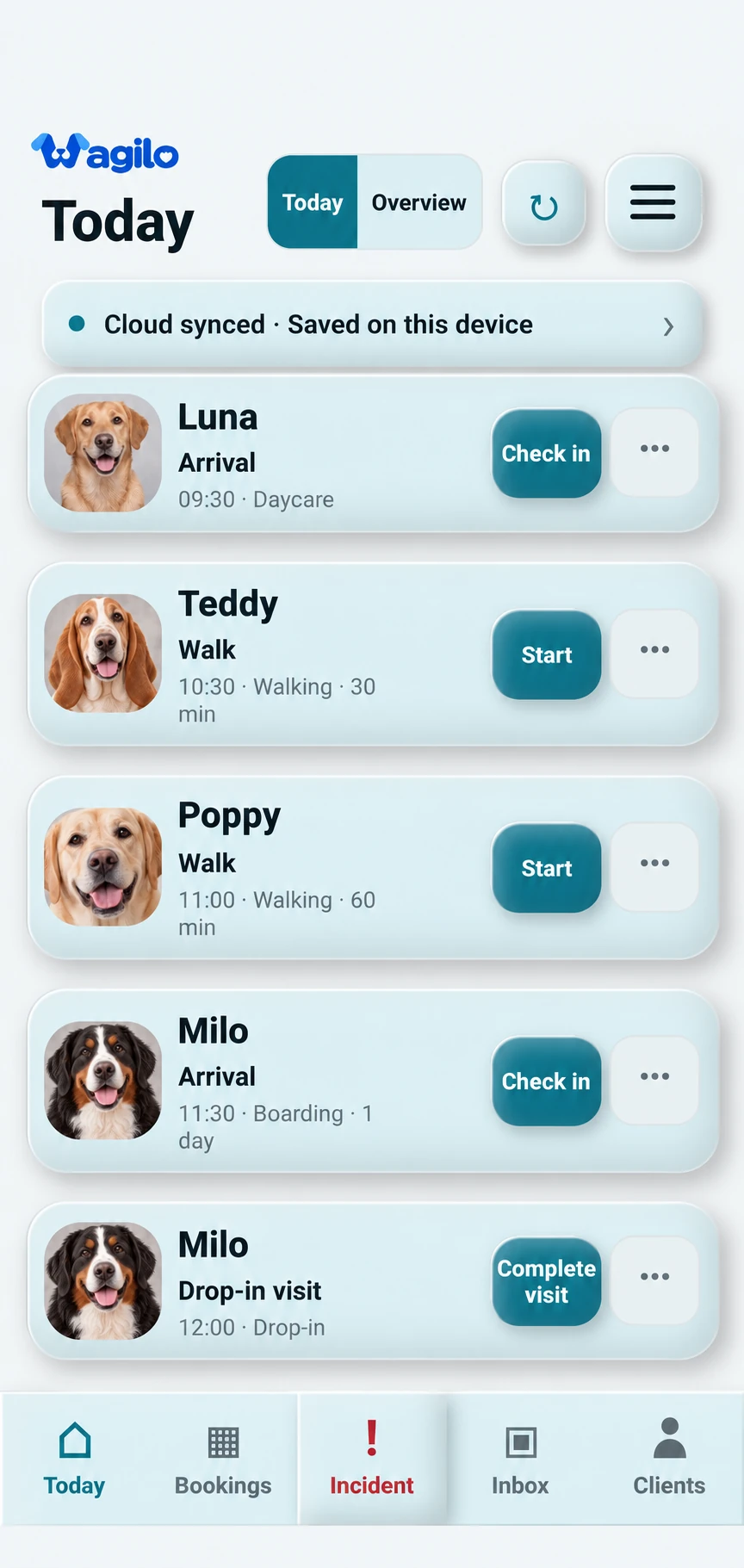
On the booking date, the work also appears on Today. The details you entered in advance are ready when you need them, with the next action for that service, such as starting a walk or checking a dog in.
Use the card to record the service as you carry it out. See Today and daily care for arrivals, care tasks and finishing the visit.
After completion, the work becomes available in Work to invoice. Wagilo can use the completed service to prepare an invoice draft, so you don’t have to type the walk or stay out again. You can check and send the invoice when you’re ready.
Booking requests from clients
Client requests from Connect or the portal arrive under Inbox → Booking requests. Review the dogs, service and dates, then use View requested day in diary to check them against the work you already have. You can consider the request without entering another booking just to see where it fits.
For a suitable exact request, choose Accept and add to diary. Choose the time first for a flexible request. If you suggest an alternative, wait for the owner’s response, then use Add accepted time to diary. Sending a suggestion alone does not create the booking.