
Wagilo business app
Finances and mileage
Check what the figures include
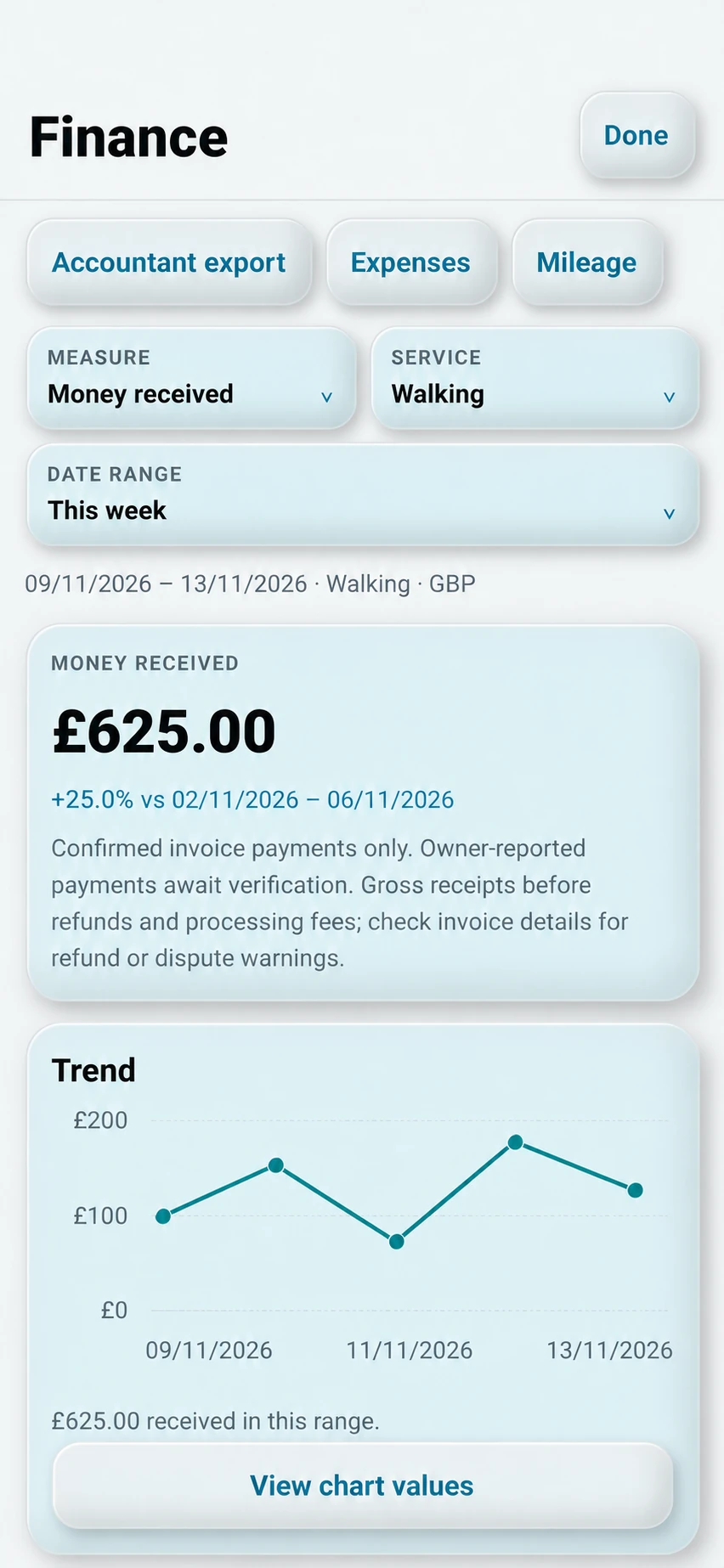
Open Finance and choose the measure, date range and service you want to review. You might look at this month’s received payments, then switch to completed work when checking what has been done but may still need billing.
Money received uses confirmed invoice payments. Invoiced and Work completed cover different stages, so their totals won’t always match. Owner reports awaiting verification are not counted as income until you confirm them.
Add expenses and refunds
Open Expenses → Add expense / refund and enter the date, supplier, amount, currency, business purpose and add a receipt photo if you have one making sure to save.
For a fuel stop or equipment purchase, saving the receipt with the entry can save you looking for it when you prepare your records later. Use Edit for corrections. Deleting the expense removes it from future exports so read the confirmation before continuing.
Prepare mileage recording
In the accounting Setup tab, choose miles or kilometres, save your business base address and add a vehicle. Select the vehicle you’re using before you start monitoring so the journeys are recorded against the right one.
Use Sync / back up now for accounting records and check its result. Accounting has its own backup status, including whether receipt photographs are waiting for a permitted connection.
Record and review journeys
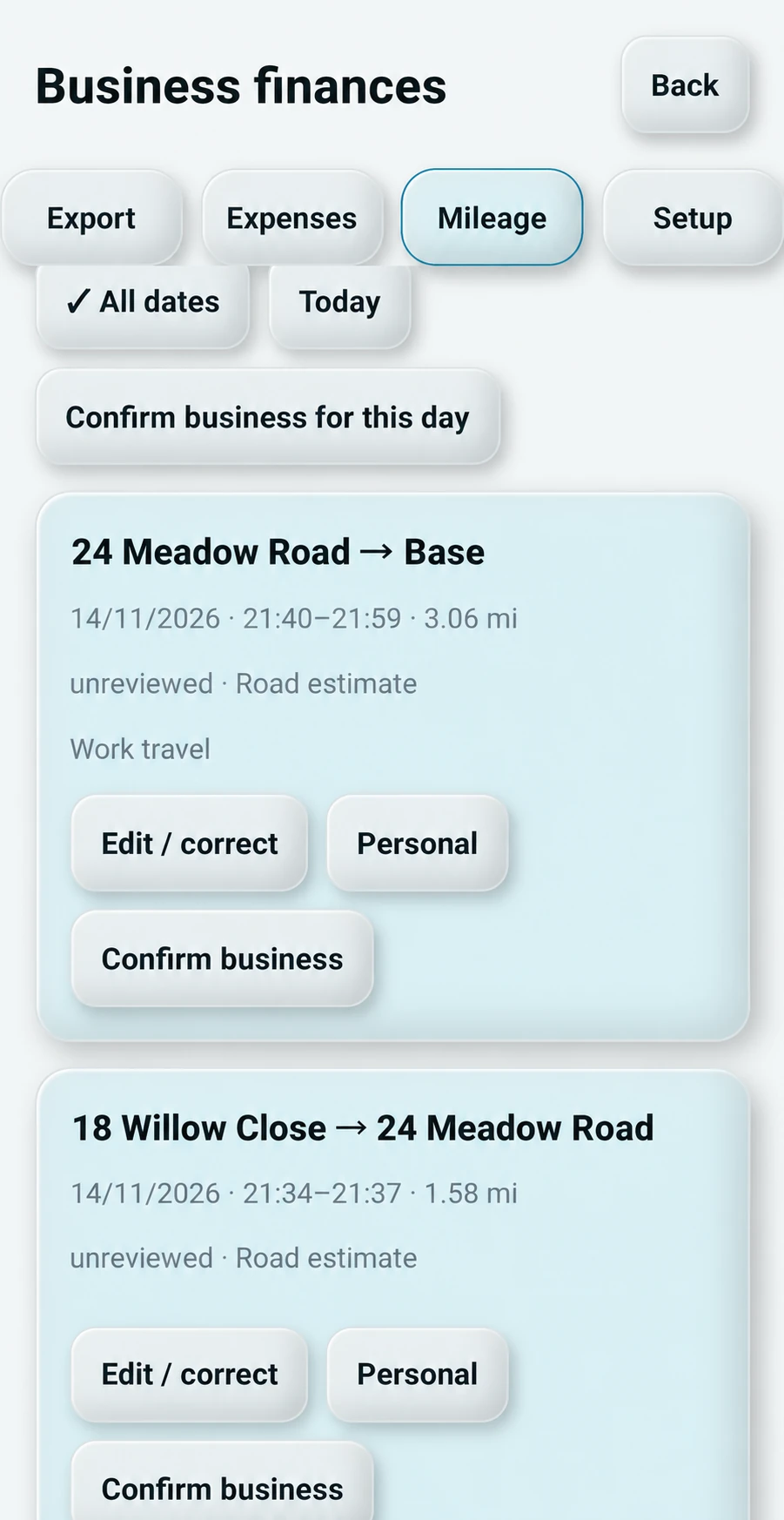
Open Mileage → Start work mileage, read the location disclosure and allow the phone permissions. Use Pause when you want to stop collection for a while, and Finish work mileage when you’re done. Collection also pauses during walks started in Wagilo.
The detected journeys give you a starting point for your mileage record. Review their endpoints, distance, vehicle and purpose, use Edit / correct where needed, and confirm business mileage after checking it. Road distances are estimates between recorded points, not an odometer measurement.
If monitoring wasn’t available, add the journey manually. You can also save regular work locations, such as a park you travel to for collections, to help identify later journeys. Each journey still needs your review before confirmation.
Journeys are grouped to help you review them. Work related has a recognised work location at both ends, including your Base. Possible work journeys has one recognised work location other than Base. Other journeys has neither, or Base is the only recognised work location. Saved work places remain recognised until removed; client addresses need a relevant booking. These groups do not confirm business use or add unreviewed journeys to business totals.
If location capture is interrupted, read the paused/interrupted status and use the available resume controls after checking permissions. Do not assume mileage was collected during a gap; add a missing journey manually where needed.
Work-focused recording
With Mode: Work focused, unmatched journeys can be held as phone-only temporary entries. They show their own seven-day expiry from arrival and are excluded from backup and export. If one was work, choose Keep as work / edit reason, enter its purpose and check the details before saving.
The display group and storage status are separate. A previously recorded, reviewed or kept journey remains saved even if it appears under Other journeys. Possible work journeys keep the existing recorded-journey policy. Changing a group does not confirm business use or turn a saved record into a temporary one.
Review temporary entries before the expiry shown. Expired temporary coordinates are removed when Wagilo next runs its maintenance; the phone cannot perform this while the app is completely shut down. A trip explicitly kept as work becomes a lasting record and still needs your review before confirmation.
Prepare an accountant export
Open Accountant export, choose the date range and an available format, then review the counts and warnings. Check payment dates, currencies and mileage review before continuing.
Choose Save export or Share export and complete the action in the destination app or folder. Include receipt files where the format supports them, and check the resulting files. The export brings those recorded details together so you can pass them on without copying each entry into another document.
Check which format your accountant needs before relying on it for an accounting-system import. The export supplies records for review; it doesn’t calculate your tax bill.