
Wagilo business app
Invoices and payments
Saving you time
Wagilo’s invoicing is designed to save you the job of sitting down at the end of a busy period and typing out everything you’ve done. As you complete services, the work becomes ready to invoice, with the service details and your saved prices already available.
If all your clients use the Wagilo Connect app or web portal and their invoice delivery preference is set to Connect / portal, you can invoice a month's worth of completed work in one batch and send it to every client, ready for payment, in six taps from Work to invoice, provided the work is ready and no corrections are needed.
There are several settings and options explained below, but most only need setting up once. Taking a little time over those now can make your regular invoicing a much smaller job.
Start with completed work
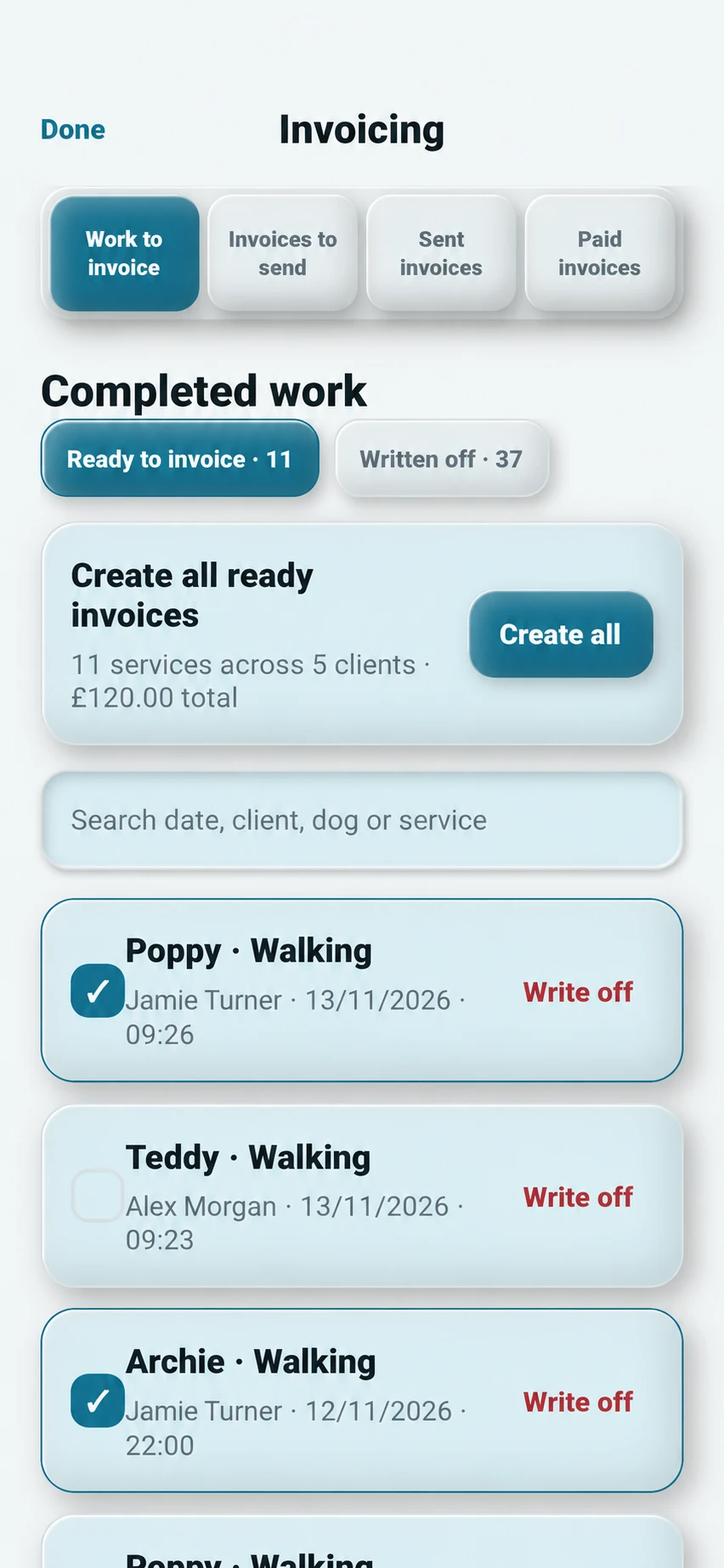
When you’re ready to bill, open Menu → Invoicing → Work to invoice. Completed services appear here after you end the walk, check out the stay or record the relevant completion. The scheduled end time alone doesn’t make the work ready.
Select the jobs and choose Create invoices, or use the available create-all action to prepare drafts together. Wagilo uses the completed work and saved prices, so you don’t have to type each walk or stay into an invoice again. You can leave the checking and sending until the drafts are ready.
Work moves out of this list once it belongs to a draft. If you can no longer see a job, look in Invoices to send before creating anything else.
Check the draft
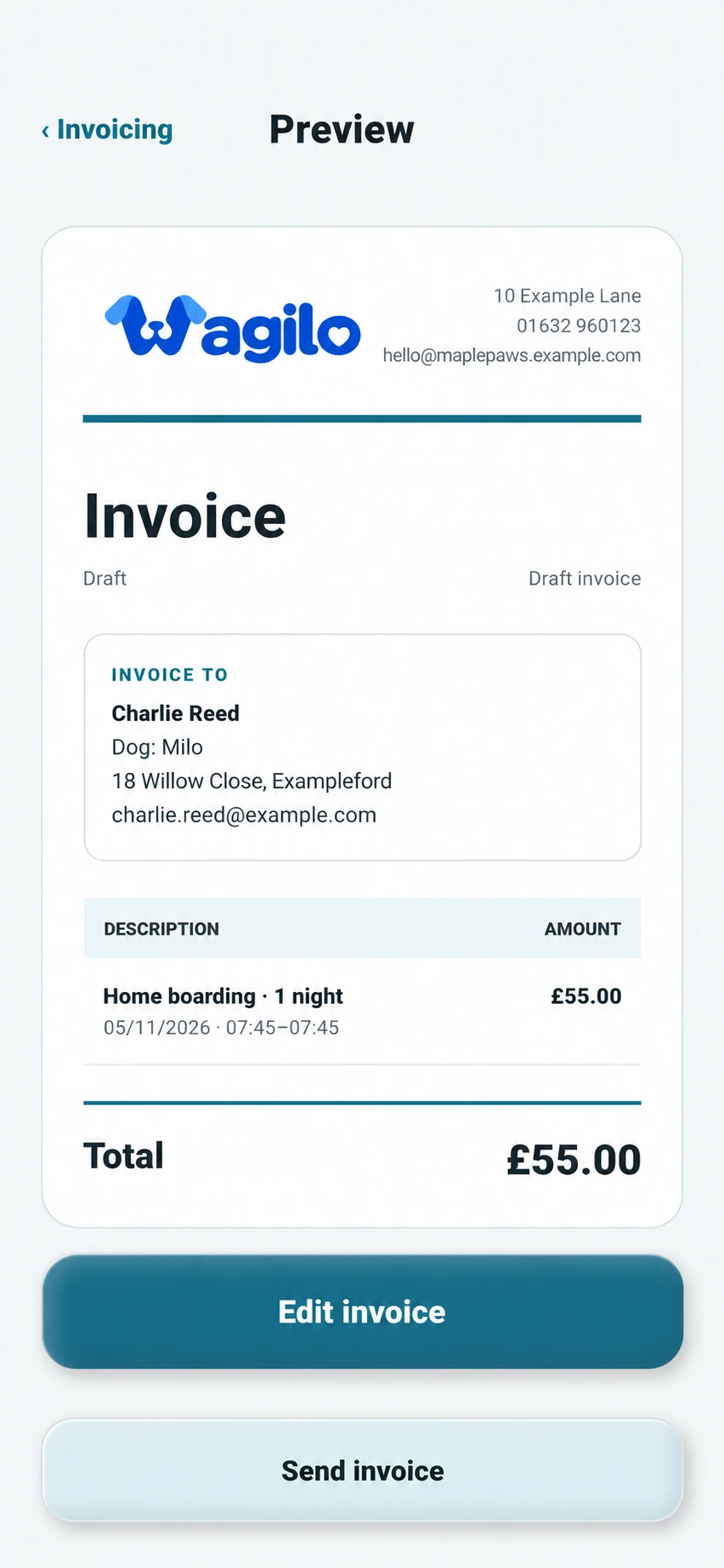
Open a draft under Invoices to send and choose Edit invoice. The service details are already there; check the recipient, dates, descriptions, quantities, rates and total before sending. The client’s saved delivery preference gives you a starting point, and you can change it for this invoice.
Use + Charge for another item or + Discount for a fixed or percentage reduction. A discount could be a thank-you to a regular client or compensation for a previous mistake. Give it a description the client will understand, check the total and choose Save invoice.
Percentage discounts use the original subtotal of the non-discount lines. Two 10% discounts subtract 20% of that subtotal. Changes to the draft’s billing details stay on the draft; they don’t change the client’s profile.
Send or publish the invoice
For a connected client, Publish to client portal makes the invoice available in their portal and Connect app where it is saved. Email and share actions open another app, where you finish sending the invoice.
When Wagilo asks, confirm that delivery actually happened. Saving a PDF or closing an email composer doesn’t confirm that the client received the invoice. If you printed or delivered it yourself, use Mark as sent afterwards.
Send selected lets you work through eligible draft invoices together instead of opening every client’s invoice separately. Check each result, especially when delivery methods differ. If a published invoice needs payment-link synchronisation, then retry that synchronisation as the invoice has already been published.
Record money received
For online payments through Stripe, a successful payment normally updates the invoice automatically. To enable online payments, open Settings → Business → Online invoice payments, complete the setup shown there and check the invoice’s payment options before issuing it.
For money received another way, open the invoice and choose Record payment received or Record payment. Check the money has reached you, enter its date, method and reference, then Mark paid. That keeps the payment information with the invoice when you come back to your finances later.
An owner can report a payment through Connect or the portal. Treat that as information to check against the money received. The invoice remains unpaid until you verify it, and you can accept or reject the report after checking.
Correct an invoice or remove work
If you spot a mistake before issuing an invoice, correct the draft and save it. For an eligible sent, unpaid invoice, use Amend and resend and check the replacement before issuing it. The original stays payable while you prepare the correction, then remains as a superseded record once the replacement is issued.
Choose the removal action that matches what you want to do. Discarding a draft, cancelling an invoice, returning work to the ready list and writing work off have different effects. In Work to invoice, Write off keeps the job in its written-off list. You can restore it if that was a mistake.
Paid invoices are locked against the ordinary unpaid correction flow. Resolve a pending client payment report before attempting a correction, so you’re working from the right payment status.